Key Takeaways
An IPTV program is usually a player that organizes streams supplied by a provider or playlist source. Choosing well means matching formats, devices, guide data, controls, and support with the way you actually watch.
- Separate the player from the service that supplies channels and on-demand content.
- Check device support, playlist formats, EPG compatibility, and accessibility before installing.
- Use a trusted app source and only add playlists you are authorized to access.
- Test Wi-Fi, playback quality, audio, subtitles, and guide data before settling on a setup.
- Treat privacy, software updates, regional restrictions, and customer support as part of the decision.
What an IPTV program is and how it works
An IPTV program delivers television over an internet connection rather than through a traditional broadcast, satellite, or cable signal. In everyday use, the phrase can describe the player app, the subscription service, or the complete arrangement of both. Understanding that distinction makes setup easier and helps avoid blaming the player when the source itself is unavailable.
IPTV apps, players, and service providers
A player is the software that reads a playlist or account login and presents channels in a watchable interface. It may handle playback, search, favorites, subtitles, and an electronic program guide, but it usually does not supply channels on its own. A provider, by contrast, supplies the authorized stream access and may also provide customer support.
IPTVON.ME is an example of a subscription service offering a vast library of live channels and video-on-demand content. That service layer and the player layer should be evaluated separately: one affects the available catalog, while the other affects navigation and playback.
Live channels, video-on-demand, and catch-up content
Live television follows a schedule, so the stream is already in progress when you join it. Video on demand lets you start selected films, programs, or episodes when convenient. Catch-up and time-shift functions, when supported by the source and player, let you watch certain recently broadcast material later.
These categories can appear in separate menus or inside one combined library. Before subscribing, check which types are actually included rather than assuming that every playlist contains live channels, VOD, and catch-up viewing.
M3U playlists, Xtream Codes, and portal links
M3U and M3U8 files or URLs commonly describe channel streams and their labels. Xtream Codes credentials provide another way to load a provider account, while portal links are associated with some set-top-box systems. The player must support the method supplied to you; otherwise, a valid account may still fail to load.
A useful playlist formats guide can help newcomers understand the difference between M3U and XSPF files before they begin entering credentials. Keep the original URL or login details private, since anyone with access may be able to use the source.
How streaming differs from traditional television
Traditional television often arrives through a dedicated broadcast path, whereas IPTV depends on the internet connection between the source, network, and viewing device. That adds flexibility, but it also makes performance sensitive to congestion, Wi-Fi coverage, device limits, and stream availability.
The result is a more software-based experience. You can move between devices and organize large libraries, but you may also need to troubleshoot buffering or refresh guide data in a way that cable viewers rarely do.
How to choose the right IPTV program
The best IPTV program is not necessarily the one with the longest feature list. Start with the devices in your home, the playlist or account format you will receive, and the controls you expect to use every day. Then compare reliability, ease of navigation, pricing, and the quality of support available when something goes wrong.
Supported devices and operating systems
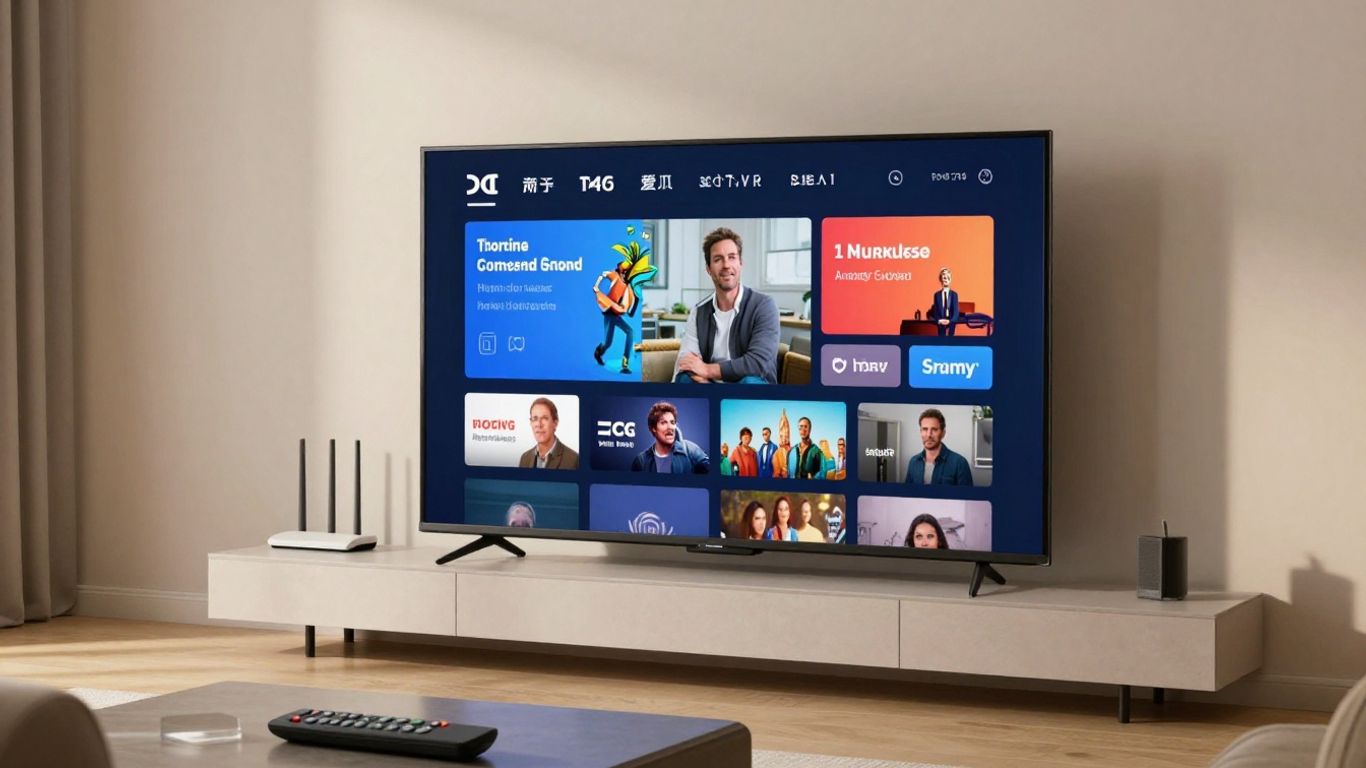
Check whether the app runs on your smart TV, streaming box, phone, tablet, computer, or preferred operating system. Some players are built for one platform, while others offer versions across several devices with different feature sets. A service may support many devices even though a particular player does not.
If you are comparing equipment as well as software, this IPTV setup guide covers the broader relationship between provider choice, compatible equipment, configuration, and internet access. Confirm remote-control support on televisions and touch-friendly controls on mobile devices.
Format and playlist compatibility
Ask which inputs the player accepts before downloading it. M3U, M3U8, XSPF, Xtream Codes, XMLTV, and portal links are not interchangeable in every app. A clean import screen is helpful, but compatibility with your actual source matters more than the number of formats listed in an advertisement.
Do not confuse a player with a content source. A player can be perfectly functional while showing no channels because the playlist is expired, incorrectly entered, or not authorized for use.
Electronic program guide support
An electronic program guide, or EPG, adds program names, times, and descriptions to otherwise plain channel streams. Look for support for the guide format your provider supplies, along with sensible time-zone handling and a refresh option. A guide that loads slowly or drifts from the schedule can be more frustrating than having no guide at all.
The guide should also be easy to read from a sofa. Grid and list views, current-program highlighting, and clear channel grouping are small details that make a large lineup manageable.
User interface and accessibility features
A good interface reduces the number of steps between opening the app and watching a channel. Consider readable text, high-contrast controls, large focus indicators, audio-track selection, subtitle controls, and support for hardware remotes or keyboards. Families may also value parental controls and simple profile separation.
Everyday navigation matters more than a dramatic first impression. Test the channel list, search, back button, and playback controls if a trial or preview is available.
Free versus paid IPTV programs
Free players can be useful when you already have a lawful playlist and want basic playback without another subscription. Paid versions may remove advertising or add convenience features, but payment does not guarantee that a source will be reliable or that content is included.
For the service itself, review the catalog, terms, support, refund policy, and expected device access. IPTVON.ME positions its subscription service around a broad live-channel and VOD library, high-quality streaming, and customer support, so those are the kinds of service-level details worth comparing directly.
Key features to compare before installing
Feature lists can look impressive while hiding the small limitations that shape daily use. Compare how quickly the app finds a channel, how it handles a crowded playlist, and whether its playback settings are available on your device. A short trial is often more revealing than screenshots.
The practical question is simple: will the program make ordinary viewing calmer, or will it add another layer of fiddling?
Channel organization and favorites
Large playlists need structure. Look for groups by genre, language, region, or source, plus a favorites area that is quick to edit. Some players remember recently watched channels, while others let you hide channels you never use.
Give the organization system a real test with a sample playlist. If moving or removing channels is awkward, the problem becomes noticeable every evening.
Search, filtering, and playback controls
Search should find channels, programs, films, or series according to what the player supports. Filters can narrow a long list by group or content type. During playback, useful controls may include pause, aspect ratio, audio track, subtitles, playback position, and an external-player option.
These controls are especially valuable on mobile devices, where screen space is limited. A focused M3U playlist player example illustrates why importing local or online playlists, searching channels, managing favorites, and casting can belong in one viewing workflow.
Multiple screens and profile options
If more than one person watches at home, check the provider’s permitted connections as well as the player’s device behavior. Multiple screens may require separate access, and not every service allows simultaneous streams. Profiles or parental controls can keep recommendations, favorites, and restricted content separate.
Read the terms carefully instead of assuming that installing the same app on several devices creates unlimited access. The technical ability to install an app is not the same as permission to use an account in multiple places.
Recording, time shifting, and catch-up viewing
Recording may be handled by the player, the device, or the content service, and each approach has different storage and rights implications. Time shifting can pause or rewind a live stream, while catch-up provides selected past programs when the source supports it.
Check whether recordings are stored locally, whether they expire, and whether the feature works on your operating system. These details matter more than a generic “DVR” label.
Subtitle, audio, and picture settings
Look for selectable audio tracks, subtitle files or streams, font-size controls, aspect-ratio choices, and picture adjustments. Hardware decoding can help some devices play demanding streams, while an external player may resolve a format the built-in player cannot handle.
Settings should be understandable without specialist knowledge. If the app exposes advanced options, change one setting at a time and keep a note of the original value.
How to set up an IPTV program
Setup is usually a short sequence: install the player, add an authorized source, load guide data if available, organize the result, and test playback. Have your account details or playlist URL ready, but do not paste credentials into unofficial websites or unknown apps. A careful first setup saves time later.
Installing the app from a trusted source
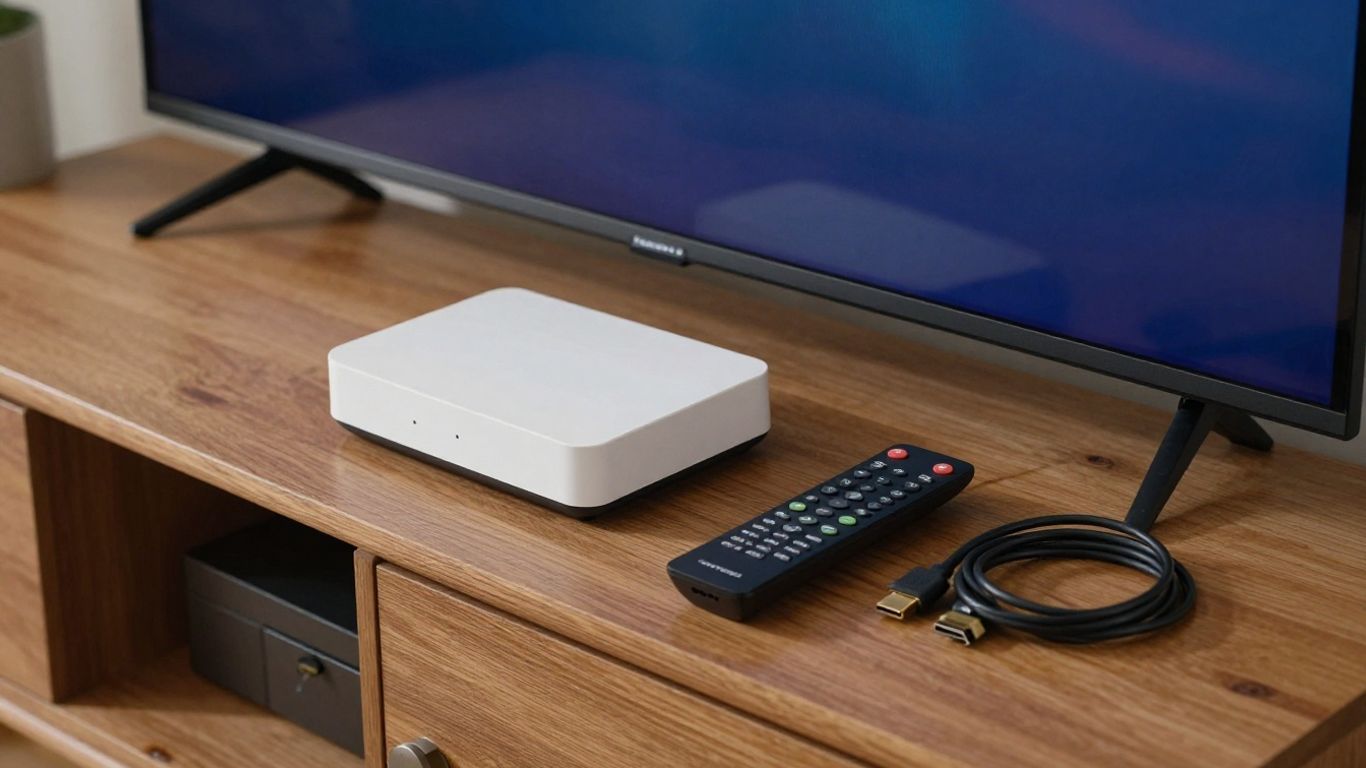
Use the official app store, the developer’s verified download page, or the device maker’s approved marketplace. Check the app name, publisher, permissions, update history, and reviews for obvious warning signs. Avoid modified packages offered through random download pages.
On devices that require sideloading, confirm the source and scan the file before installation. A reliable IPTV installation guide can help with device prerequisites and common setup steps without replacing the need to verify the app yourself.
Adding a playlist or provider account
Open the correct input method and enter the playlist URL, upload the file, or add the provider account details exactly as supplied. Watch for extra spaces, incorrect capitalization, expired links, and device-specific restrictions. If the app offers a playlist name field, use a clear label so you can identify it later.
Add one source first and test it before importing several more. This makes it easier to identify whether a problem comes from the account, the playlist, the network, or the app.
Importing an electronic program guide
An EPG may arrive as a URL, an XMLTV file, or part of an account configuration. Add it in the guide settings, choose the correct time zone, and allow the app to finish refreshing before judging the result. Some sources use different channel identifiers, so guide data may need matching rather than a simple import.
If programs appear under the wrong channels, remove duplicate guide sources and check the provider’s instructions. Repeated refreshes rarely fix a mismatched identifier.
Organizing channels into custom groups
Once the source loads, hide unused channels and create groups for the people or programs you watch most. Favorites should be selective; saving everything defeats the purpose. Keep a general group available as a reference while building smaller lists for news, sports, films, or languages.
Make changes gradually and back up settings if the player supports it. A tidy list improves both search speed and the experience of anyone using a remote control.
Testing playback and stream quality
Test several channels rather than just the first one that opens. Try a high-resolution stream, a less popular channel, subtitles, audio switching, and a few minutes of continuous playback. Note whether the picture freezes, the sound falls out of sync, or the EPG remains accurate.
A practical test sequence keeps troubleshooting focused:
- Play a channel on the intended device for several minutes.
- Switch between two or three channel groups.
- Check audio tracks, subtitles, and aspect ratio.
- Repeat the test at the time you normally watch.
Afterward, you will know whether the setup is ready for routine viewing or needs network and source checks. The IPTV setup tutorial is another useful reference for beginner device installation and troubleshooting.
Choosing an IPTV program for different devices
The same account can feel different across a television, phone, tablet, and computer. Living-room devices favor remote-friendly navigation, while mobile apps need touch controls and efficient data use. Choose the player according to where you watch most often, not just the number of platforms listed on its download page.
Smart TVs and streaming boxes
Smart TVs and streaming boxes benefit from a clear focus highlight, quick startup, and layouts that remain legible from a distance. Check whether the app is available in the device’s official store and whether it supports the remote, resolution, and audio system connected to the television.
Storage and processor limits can affect large playlists. Removing unused sources and categories may make navigation feel more responsive.
Android phones and tablets
On Android, look for responsive touch controls, portrait and landscape layouts, picture-in-picture if you need to multitask, and sensible mobile-data behavior. Download only from a trusted marketplace and review permissions before signing in.
A phone is also useful for testing an account away from home, though mobile networks can behave differently from household Wi-Fi. Do not assume that successful playback on a phone proves a television setup will perform identically.
iPhone, iPad, and Apple TV
Apple devices reward apps that follow familiar navigation patterns and handle remote focus well on Apple TV. Check playlist formats, EPG support, subtitle behavior, and whether settings synchronize between devices. Some apps are designed for iPhone and iPad but have limited or separate Apple TV experiences.
For context, Perfect IPTV Player is documented as an IPTV player for iPhone, iPad, and Apple TV that supports M3U, XSPF, Xtream Codes, and XMLTV EPG. It is described as a player only, so users still need their own legally authorized sources.
Windows, Mac, and cross-platform computers
Desktop viewing is useful for larger playlists, keyboard search, and testing streams before moving them to a television. Check whether the program uses a built-in player or can hand streams to an external player. Window resizing, audio-device selection, and local file imports can matter more on a computer than on a TV.
Cross-platform software may share a design across systems, but features are not always identical. Read the platform notes before relying on recording, catch-up, or guide tools.
Casting to a larger screen
Casting can be convenient when the player supports it and the phone and television are on the same network. It may send the stream from the phone or tell the larger device to open it directly, so playback behavior varies. Test subtitles, audio tracks, and disconnection recovery before using casting for a long program.
A wired connection or native TV app may be steadier for demanding streams. Casting is best treated as an option, not as a guarantee of better quality.
IPTV program performance and troubleshooting
Most playback problems have a limited set of likely causes: the source, the internet connection, the local network, the device, or the player. Change one variable at a time so you can tell what helped. Also check whether an outage affects one channel or the entire service.
IPTVON.ME emphasizes high-quality streaming, anti-freeze technology, a 99% uptime guarantee, and 24/7 support as part of its service positioning. Those are service-level considerations to verify in the current terms, while local buffering still needs network and device testing.
Improving buffering and stream stability
Start by comparing several channels. If only one stream buffers, the source may be the issue; if every stream does, inspect Wi-Fi, router load, and device performance. Lowering resolution can help a weak connection, but it should be a test rather than the only solution.
Close unused apps, restart the player, and try a wired connection where practical. Avoid changing buffer settings repeatedly without recording what you changed.
Checking internet speed and Wi-Fi coverage
Run a speed test near the viewing device and repeat it at the time congestion usually occurs. Distance from the router, walls, interference, and other active users can all reduce consistency even when the headline speed looks generous. A wired connection often removes one variable.
Restarting the router may help a temporary fault, but it will not repair an expired playlist or an unavailable stream. Compare results on another network only when doing so is safe and permitted.
Resolving missing channels or guide data
Refresh the playlist and check its expiration, URL, login details, and channel groups. Missing guide listings may indicate an EPG URL problem, incorrect time-zone settings, or unmatched channel identifiers. If only selected channels disappear, contact the authorized provider rather than repeatedly reinstalling the app.
Keep a copy of working settings before making changes. That gives you a known starting point if a refresh makes the display worse.
Fixing audio, subtitle, and compatibility issues
Try another audio track, confirm the subtitle language, and check whether the stream uses a codec your device supports. An external player may help with a particular format, but it can also remove features such as integrated guide controls. Picture problems may come from aspect-ratio settings rather than the stream itself.
Test the same channel on a second supported device. If the issue follows the source, report the exact channel and error; if it stays with one device, focus on its app and system settings.
Updating or reinstalling the player
Install updates from the same trusted source used originally, and read release notes when available. Before reinstalling, record playlist URLs, account details, favorites, and custom settings. Clear the app cache first if that option exists; clearing data may remove saved configuration.
Reinstalling is a reset, not a universal cure. If the same source still fails afterward, investigate the account, guide, network, or device instead of repeating the installation cycle.
Safety, privacy, and legal considerations
An IPTV program is a tool, not automatic permission to watch everything it can display. You are responsible for choosing authorized content sources and following the laws and terms that apply where you live. Treat account details, device permissions, and downloads with the same care you would give any other streaming service.
Verifying that content sources are authorized
Use a provider that clearly explains its service, billing, contact methods, and content rights. Be cautious when a source makes vague promises, refuses to identify its business, or asks you to hide the nature of the service. A low price alone does not establish authorization.
Review regional terms and cancellation conditions before paying. For broader comparison criteria around reliability, pricing, technical quality, and legal compliance, see this provider evaluation guide.
Recognizing unsafe apps and suspicious playlists
Warning signs include unofficial app packages, aggressive permission requests, forced redirects, unexplained payment pages, and playlists from anonymous sources. A playlist URL can also lead to harmful websites or expose account information if entered into the wrong place.
Pause when an app asks for access unrelated to playback. The Travel Fx privacy policy is not an IPTV document, but it is a useful reminder to read how a service collects, retains, protects, and shares personal data before creating an account.
Protecting accounts and personal information
Use a unique password, avoid sharing provider credentials, and sign out on devices that do not belong to you. Do not post playlist URLs in public forums, since they may contain tokens or account identifiers. Review billing statements and account activity for anything unexpected.
Privacy choices matter beyond television. Even an unrelated pillow covers guide can illustrate the broader habit of checking what information a website requests before browsing or purchasing; apply the same caution to streaming services.
Using secure downloads and software updates
Keep the operating system, router firmware, and player updated through official channels. Avoid cracked versions that promise premium features, because they may contain altered code or remove normal security checks. On shared devices, use screen locks and restrict installation permissions where possible.
If you need health-related services, a separate Venturis Clinic page shows why checking official contact and service information matters; for IPTV, use the provider’s verified site and support channel instead of a copied download link.
Understanding regional content restrictions
Programs, channels, and licensing arrangements can vary by country or territory. A stream that works while traveling may be unavailable elsewhere, and bypassing a restriction may breach a service’s terms or local law. Read the provider’s conditions before using any network tool or changing account settings.
The same careful comparison applies in unrelated purchases, such as researching an CIPD provider or an Ibiza boat club: confirm who operates the service, what is included, and which restrictions apply before paying. For IPTV, stay with sources you are legally authorized to use.
Conclusion
Choosing an IPTV program becomes much simpler when you separate the player from the content source, test compatibility before committing, and build a setup around your actual devices and network. A clear interface, dependable guide data, sensible troubleshooting, secure downloads, and an authorized provider all contribute to a better experience than a long feature list alone.
Frequently Asked Questions
What is an IPTV program?
An IPTV program is software that plays television streams delivered over the internet. It generally needs a playlist or provider account and does not automatically include channels.
Do IPTV players provide channels?
Most players do not provide channels. They organize and play sources supplied by a provider or playlist owner, so users must verify that those sources are authorized.
What is an M3U playlist?
An M3U playlist is a file or URL containing stream information and labels that a compatible player can read. M3U8 is a related UTF-8 format commonly used for streaming lists.
What does an EPG do?
An electronic program guide adds schedules, titles, and descriptions to supported channels. It normally requires compatible guide data from the provider or another authorized source.
Why does IPTV buffering happen?
Buffering can result from weak Wi-Fi, network congestion, device limitations, an overloaded source, or an unavailable stream. Testing another channel and another connection can help isolate the cause.
Can one IPTV account work on multiple devices?
That depends on the provider’s terms and permitted connections. Installing a player on several devices does not necessarily allow simultaneous streams or unlimited use.
Is IPTV legal?
IPTV technology itself is a way to deliver television over the internet. Legality depends on the content source, licensing, user permissions, and the laws and service terms that apply in your region.