Estimated reading time: 8 minutes
Key Takeaways
- IPTV Benefits: Access live TV and on-demand content without traditional cable subscriptions.
- Internet Speed: A reliable high-speed internet connection is crucial for optimal streaming.
- App Selection: Use the right IPTV app for your smart TV model to enhance the viewing experience.
- Legal IPTV: Ensure your IPTV service is legally authorized to avoid issues.
Table of Contents
What is IPTV on Smart TV?
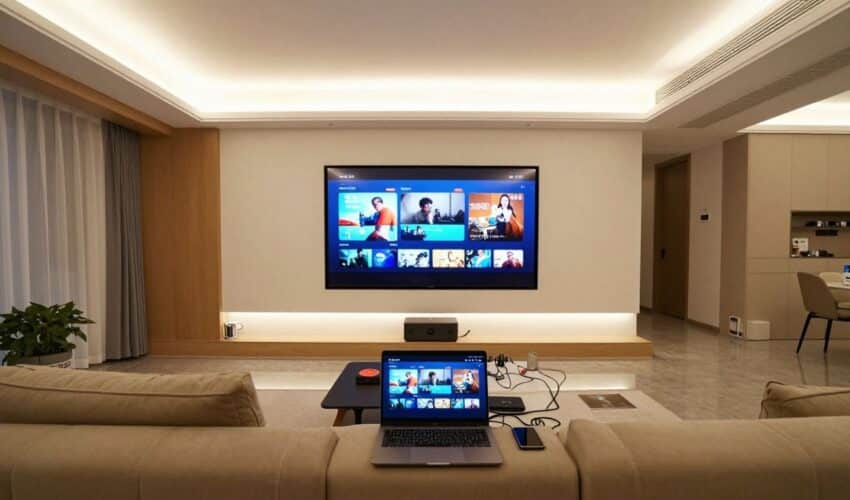
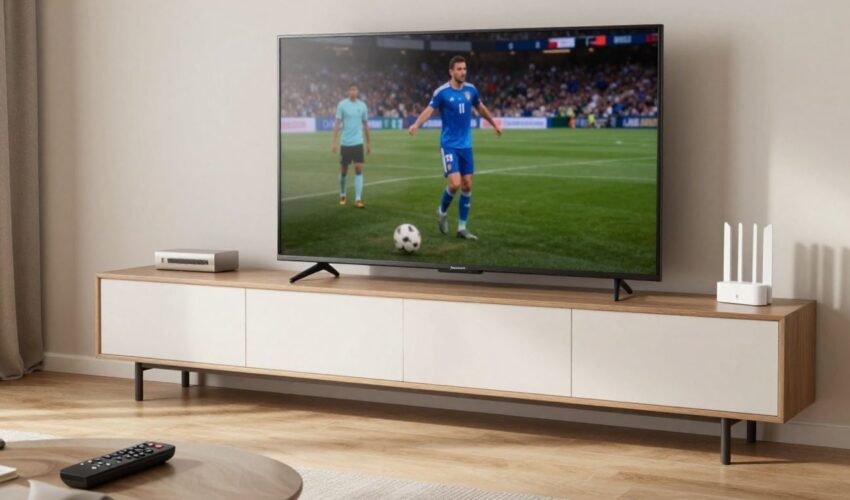
IPTV (Internet Protocol Television) on smart TV refers to streaming live TV channels and on-demand content over the internet directly to your television. Unlike traditional cable TV, IPTV delivers content through your internet connection, giving you access to thousands of channels worldwide.
Essential Requirements for IPTV Setup
Before you start streaming, gather these necessities:
- High-speed internet connection (10+ Mbps for HD quality)
- Valid IPTV subscription with playlist URL https://iptvon.me/how-to-download-m3u-playlists
- Smart TV running Samsung Tizen, LG webOS, or Android TV
- EPG (Electronic Program Guide) file (optional but recommended) https://iptvon.me/smarters-pro-epg-source-setup-guide
Best IPTV Smart TV Apps
Your streaming experience depends heavily on choosing the right app. Here are top options:
- IPTV Smarters Pro: Feature-rich interface, perfect for Android TV https://iptvon.me/iptv-smarters-web-guide-2025
- Smart IPTV: Excellent compatibility with Samsung and LG TVs
- TiviMate: Advanced features for Android TV users
- GSE Smart IPTV: User-friendly option for beginners
How to Setup IPTV on Samsung TV
Follow these steps to get started:
- Press the Home button on your remote
- Navigate to the Samsung App Store
- Search for your preferred IPTV app
- Install the application https://iptvon.me/how-to-install-iptv-guide
- Launch the app and input your playlist URL
- Add EPG information if available
Setting Up IPTV on LG and Android TVs
LG Smart TV Setup:
- Access LG Content Store
- Download your chosen IPTV app
- Enter playlist details
- Configure EPG settings
Android TV Configuration:
- Open Google Play Store
- Install an IPTV app like TiviMate
- Input your subscription details
- Customize interface preferences
Understanding Playlist Formats
Two main formats you’ll encounter:
- M3U/M3U8: Standard playlist format containing channel information https://iptvon.me/how-to-download-m3u-playlists
- XMLTV: EPG data format showing program schedules
Troubleshooting Common Issues
Solve these frequent problems: https://iptvon.me/iptv-troubleshooting-guide-2025
- Buffering: Switch to ethernet connection or check internet speed
- Black screen: Verify playlist URL and app permissions
- Missing channels: Update playlist or contact provider
- App crashes: Clear cache or reinstall application
Performance Optimization Tips
Maximize your viewing experience:
- Use wired internet connection when possible
- Keep your smart TV software updated
- Clear app cache regularly
- Consider using a VPN for stable connections https://iptvon.me/best-iptv-built-in-vpn-2025
Legal Considerations
Stay within legal boundaries:
- Subscribe to authorized IPTV services https://iptvon.me/is-iptv-legal-guide
- Avoid pirated content streams
- Review service terms carefully
- Maintain online security practices
Frequently Asked Questions
Can I use free IPTV services?
While free services exist, paid subscriptions typically offer better reliability and content quality.
Do I need special equipment?
No additional equipment needed if you have a compatible smart TV.
What internet speed do I need?
Minimum 10 Mbps, but 25+ Mbps recommended for HD content.