Key Takeaways
IPTV HD delivers television over an internet connection, but picture quality depends on more than a channel list. The service, player, home network, and legal source of the content all matter.
- IPTV HD can include live television, on-demand video, and time-shifted viewing.
- HD and 4K require suitable source quality, device support, and stable bandwidth.
- Compare channels, reliability, compatibility, pricing, and subscription terms before paying.
- Use a compatible player, enter playlist details carefully, and test playback on your network.
- Choose licensed content and protect your account, payment details, and devices.
What IPTV HD means and how it works
IPTV HD is television delivered through Internet Protocol networks rather than through a dedicated cable or satellite feed. A provider sends video data to an app or player, which buffers a small amount and displays the stream on your device. The experience can feel much like regular television, although the quality depends on your connection and the provider’s infrastructure. For a broader introduction, this IPTV fundamentals guide explains the underlying model and its practical trade-offs.
IPTV compared with cable, satellite, and streaming apps
Cable and satellite services generally use their own delivery infrastructure, while IPTV uses an internet connection that can also carry ordinary web traffic. Streaming apps usually center on a single catalog or network, whereas an IPTV service may combine live channels with video-on-demand in one interface. That flexibility is useful, but it also means congestion, Wi-Fi problems, or an overloaded server can affect playback. The most helpful comparison is therefore not simply channel count; it is how consistently the whole service works in your home.
HD, Full HD, and 4K explained
HD commonly refers to a high-definition picture, while Full HD usually means 1920 × 1080 pixels. 4K has roughly four times the pixel count of Full HD, but resolution alone does not guarantee a sharper picture. The source must be supplied at that quality, and the television, player, and connection must all handle it. A well-encoded HD stream can look better than a poorly delivered 4K stream.
The role of internet speed and network stability
Speed is only one part of streaming performance. A connection with occasional drops or heavy evening congestion can cause buffering even when a speed test shows a high headline number. Leave capacity for other household activity, especially when several people are gaming, video-calling, or watching separate streams. Stability matters as much as speed when a live broadcast cannot simply pause and wait.
Live TV, video-on-demand, and time-shifted content
Live TV plays as the event is broadcast, so interruptions are immediately visible. Video-on-demand lets you start a film or episode when you choose, while time-shifted features may allow pausing, restarting, or replaying an earlier program when the service supports them. Check which functions are actually included rather than assuming every IPTV HD subscription offers recording or catch-up viewing. The distinction also helps you judge whether a service suits sports, news, family viewing, or occasional movies.
How to evaluate an IPTV HD service
A polished homepage can make any service look impressive, so evaluate the details behind the presentation. Look for clear information about content rights, supported devices, pricing, support, and how problems are handled. A short trial can reveal more than a long feature list if you test it during the hours when your household normally watches. This IPTV subscription checklist is a useful companion when comparing those practical points.
Channel selection and content availability
Start with the channels and programs you genuinely watch. A large headline number is less useful than reliable access to your preferred news, sports, local, international, or family content. Search for a channel list, region information, language options, and details about VOD categories. If a provider will not explain what is included, treat that lack of clarity as a reason to pause.
Video quality, uptime, and stream reliability
Ask how the service describes HD, Full HD, and 4K streams, and whether quality varies by channel. Uptime claims should be read as service targets, not a promise that every stream will be perfect at every moment. Test several channels, switch between live and on-demand content, and observe start times, resolution changes, and audio sync. A dependable provider should also make support contact details easy to find.
Device compatibility and simultaneous connections
Compatibility covers more than whether an app can be installed. Confirm that your operating system, player, remote control, and desired resolution are supported, and check how simultaneous connections are counted. Some plans limit the number of active devices even if the account can be installed on more than one screen. A simple comparison table can keep those differences visible:
| Evaluation point | What to verify | Why it matters |
|---|---|---|
| Supported devices | TV, box, phone, tablet, or computer | Prevents an unsuitable purchase |
| Stream quality | HD, Full HD, or 4K availability | Matches picture expectations |
| Connections | Active screens allowed by the plan | Avoids household playback conflicts |
| Player support | M3U, portal, or app requirements | Makes setup more predictable |
Use the answers to match the plan to your actual household rather than paying for unused capacity. Hardware with a modern decoder, such as an IPdecoder HD 4K IPTV, may suit specialized installations, but ordinary home viewers should first confirm that their chosen player and television are compatible.
Pricing, trial periods, and subscription terms
Compare the total price, billing interval, renewal terms, refund rules, and support included with the plan. A free or low-cost trial is useful only if its limitations are stated clearly and it does not require unnecessary personal information. Avoid paying for a long period before checking playback on your own devices. Transparent terms are a better sign than an unusually low price with vague promises.
Which devices support IPTV HD
IPTV HD can work across many screens, but support is determined by the player and the format supplied by the provider. A device may be powerful enough for HD yet awkward to control, or it may lack the app needed for a particular portal. Before buying extra hardware, check the streaming device setup guide and confirm the connection options on equipment you already own. The best setup is usually the one that is simple to update and easy for everyone at home to use.
Smart TVs and streaming boxes
Smart TVs are convenient because the player can run directly on the television. Streaming boxes may offer faster navigation, broader app support, and more frequent software updates, while also making it easier to replace the playback device later. Check the television’s operating system, available storage, remote behavior, and Ethernet port. Older models may handle basic HD but struggle with newer apps or higher-resolution streams.
Android phones, tablets, and Google TV devices
Android phones and tablets are useful for testing an account before setting up a living-room screen. Google TV devices often provide a television-focused interface with access to compatible players. Install software only from a trusted source, review requested permissions, and avoid players that demand unrelated access. A player may support HD playback while still requiring you to supply a lawful playlist or portal from your provider.
Fire TV, Apple TV, and compatible players
Fire TV and Apple TV use different operating systems and app stores, so instructions for one should not be copied mechanically to the other. Check whether the provider supplies platform-specific guidance or simply supports a third-party player. You may also need to use an approved external player when the preferred app is unavailable. Compatibility should be confirmed before subscribing, especially if your home uses several platforms.
Computers, browsers, and HDMI setups
A computer can be a practical test screen because it makes playlist entry and troubleshooting relatively easy. Browser playback depends on the service and the web player, so do not assume that every M3U or portal works in a browser. An HDMI connection can send the picture to a larger display, but check audio output, resolution settings, and cable limitations. Keep the computer’s operating system and browser updated while testing.
How to set up IPTV HD
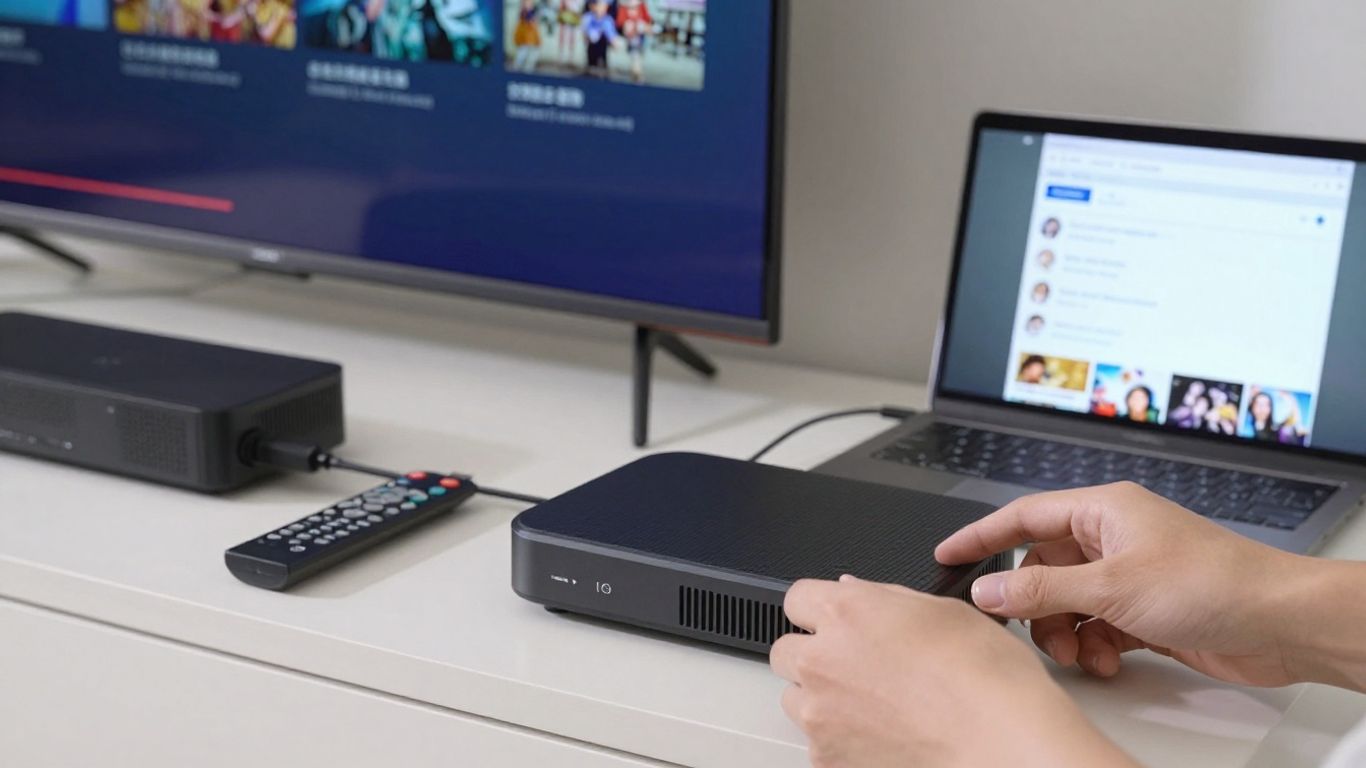
Setup normally involves four pieces: a lawful subscription or playlist, a compatible player, a network connection, and a display. The exact labels vary between apps, but the sequence is broadly similar. This IPTV setup tutorial covers the process across common televisions, boxes, and mobile devices. Take a few minutes to record login details securely before beginning.
Choosing a compatible IPTV player
Choose a player that supports the playlist or portal format supplied by your provider and runs on your device. Look for clear update history, sensible permissions, favorites, search, and an electronic program guide when those features matter to you. A player is generally a viewing tool, not proof that the underlying channels are licensed. Read its privacy information and download it from a reputable store or the provider’s clearly identified instructions.
Entering an M3U playlist or portal details
An M3U playlist is commonly added by pasting a URL or importing a file, while portal-based services may ask for a server address, username, and password. Enter each field carefully, since an extra space or missing character can make a valid account appear broken. Do not post credentials in public forums or send them to an unverified support contact. If the provider offers a setup page, follow its device-specific steps rather than guessing.
Organizing channels and electronic program guides
Once the list loads, remove duplicates and place frequently watched channels in favorites. Grouping channels by region, language, or category can make a large library easier to navigate. If an EPG is available, confirm that its time zone and channel matching are correct; an attractive guide is not helpful when programs appear at the wrong time. Save changes only after checking that the player still opens the stream correctly.
Testing playback and adjusting stream quality
Test more than one channel and include both live and on-demand content if available. Watch long enough to notice buffering, dropped audio, or resolution changes rather than judging the setup from a ten-second preview. If the player offers quality choices, begin with HD and move higher only after the connection remains steady. For a more detailed sequence, this IPTV configuration guide covers playlist management, EPG settings, and common setup decisions.
The video can be useful for seeing where common player settings live, but menus change between app versions. Treat it as a visual aid and rely on the current instructions for your specific device.
How to improve IPTV HD streaming quality
Good IPTV HD playback is a shared result of the source stream, your internet service, your router, and the device doing the decoding. Improving one part may not fix a fault somewhere else. Start with a speed test near the viewing device, then compare results at different times of day. This streaming optimization guide offers additional advice on network settings and troubleshooting.
Recommended internet speeds for HD playback
There is no single speed that guarantees perfect playback because encoding, household use, and provider delivery vary. As a practical starting point, allow several megabits per second for one HD stream and more headroom for other traffic; 4K needs substantially more capacity. Test the connection while the stream is running, not only when the network is idle. If multiple screens play at once, consider their combined demand rather than the requirement of one television.
Wired Ethernet versus Wi-Fi connections
Ethernet is usually the more consistent choice for a television or streaming box near the router. Wi-Fi can work well when the signal is strong, the band is not crowded, and the device is positioned sensibly. Newer wireless standards may help, but they cannot overcome thick walls, interference, or a weak broadband connection. If Ethernet is practical, use it for the screen that matters most.
Router placement, congestion, and buffering
Place the router in an open, central position rather than inside a cabinet or behind the television. Separate it from obvious sources of interference and check whether heavy downloads, cloud backups, or game updates coincide with buffering. Restarting equipment can clear a temporary fault, but recurring problems deserve a closer look at signal strength and network load. A household schedule often reveals congestion that a single daytime test misses.
Troubleshooting freezing, lag, and audio issues
Work from simple causes to more specific ones. The following sequence prevents random changes from making the problem harder to diagnose:
- Restart the player, device, and router, then test the same channel again.
- Try another channel to distinguish a source problem from a home-network problem.
- Reduce the stream quality temporarily and check whether playback stabilizes.
- Test Ethernet or a stronger Wi-Fi position if the device is connecting wirelessly.
- Contact the provider with the device, channel, time, and exact error message.
If only one channel fails, the issue may be specific to that stream. If every service on the device is slow, investigate the network or hardware before changing your subscription.
How to use IPTV HD legally and securely
Safe IPTV use begins with knowing who supplies the content and what your subscription permits. Services that hide ownership, licensing, pricing, or support arrangements create unnecessary risk. A secure setup also protects the account and the devices used to watch it. This legal IPTV streaming guide explains the difference between legitimate services and risky unlicensed offers.
Checking licensing and content rights
Choose providers that clearly identify the service, explain the content they are authorized to distribute, and publish usable terms. Availability can vary by country because rights are often regional. Do not assume that a channel appearing in an app is automatically licensed. If the source cannot answer basic rights questions, do not provide payment details.
Recognizing misleading provider claims
Be cautious with guarantees of every channel, every premium platform, unlimited devices, or flawless 4K at an implausibly low price. Claims about uptime or anti-freeze performance should be treated as service statements to investigate, not as certainty. Clear contact information, a real refund policy, and precise subscription limits are more useful than inflated numbers. The same habit applies outside streaming: verify credentials as carefully as you would when reviewing London renovation contractors.
Protecting accounts, payments, and personal data
Use a unique password and avoid sharing credentials across household services. Pay through a method that offers appropriate transaction records, and check the provider’s privacy policy before submitting identification or billing information. Keep account emails, activation codes, and playlist URLs private. Security tools should complement careful purchasing, not substitute for checking the provider itself; even services such as Anoman are designed for AI application guardrails, not IPTV protection.
Avoiding suspicious apps, malware, and unsafe downloads
Do not install modified players, unofficial APK files, cracked software, or browser extensions that promise extra channels. Review permissions and remove apps that request access unrelated to playback. Keep your device updated, use reputable malware protection where appropriate, and scan unexpected downloads before opening them. The same basic caution applies when checking DVLA check codes, browsing adidas products, or reviewing intraoral photogrammetry: use the genuine site and avoid links that imitate it.
Conclusion
IPTV HD can be a flexible way to watch live and on-demand television when the service is transparent, the player fits your device, and your network is stable. Compare the practical details, test playback before committing, and treat licensing and account security as part of the viewing experience rather than afterthoughts.
Frequently Asked Questions
What does IPTV HD mean?
IPTV HD means high-definition television delivered over an internet protocol connection. The final picture depends on the source, player, device, bandwidth, and network stability.
Is IPTV HD the same as cable TV?
No. Cable uses a dedicated cable television network, while IPTV delivers streams through an internet connection. The viewing experience may look similar, but the technical delivery and potential failure points differ.
How fast should my internet be for IPTV HD?
A stable connection with several megabits per second available for one HD stream is a reasonable starting point. Leave extra capacity for other household activity and expect 4K playback to require considerably more.
Can I watch IPTV HD on a smart TV?
Often, yes, provided the television supports a compatible player and the playlist or portal format used by the service. Check the specific operating system and app requirements before subscribing.
What is an M3U playlist?
An M3U playlist is a file or URL containing media stream information that a compatible player can read. It does not by itself establish that the listed content is legally provided.
Why does IPTV HD keep buffering?
Buffering can result from weak Wi-Fi, network congestion, insufficient bandwidth, an overloaded source stream, or device limitations. Testing another channel and another connection method can help isolate the cause.
How can I use IPTV HD safely?
Choose a transparent provider with clear rights, pricing, terms, and support. Use trusted apps, strong unique credentials, secure payments, current device software, and avoid unofficial downloads.