Key Takeaways
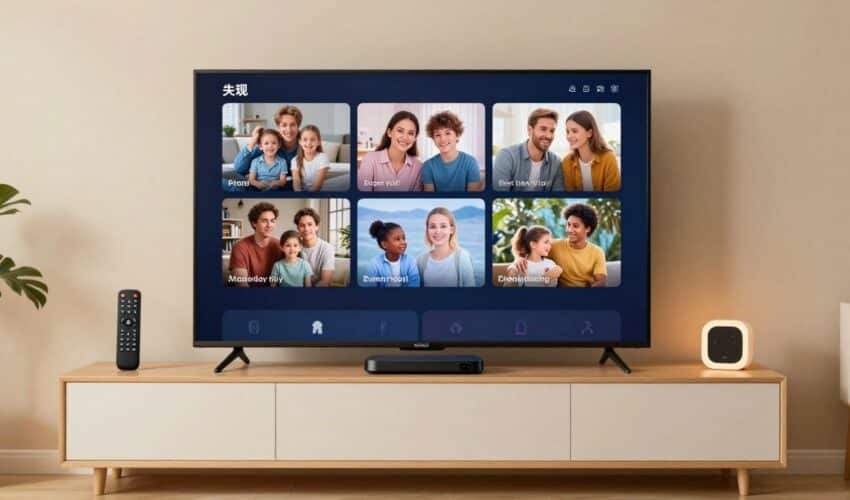
Transitioning to advanced streaming interfaces requires understanding both the software architecture and the hardware environment. This guide ensures your setup remains stable and efficient for all your entertainment needs.
- IPTV Pro utilizes M3U and XSPF playlist formats for channel organization.
- Hardware choice significantly impacts playback quality on high-resolution streams.
- Electronic Program Guides are essential for viewing schedule metadata accurately.
- Consistent cache management prevents playback stalling and improves application responsiveness.
- Using a verified provider ensures access to stable streams and support.
Understanding IPTV Pro technology
What is IPTV Pro and how does it work?
IPTV Pro acts as a specialized media player designed to process network streams rather than storing files locally. It interprets stream links provided by services like IPTVON to render live content directly on your screen. The application functions by wrapping external data streams into a navigable interface, enabling users to bridge the gap between their internet sources and their television displays.
Key features and benefits of the platform
Users often choose this technology for its broad compatibility across diverse streaming protocols. The platform includes sophisticated features such as internal buffer adjustments and support for external video players. By utilizing this system, you can consolidate multiple content sources into a single organized application, keeping your viewing experience streamlined and accessible.
Distinguishing between official software and third-party IPTV services
Understanding the distinction between infrastructure and the application layer is critical for performance. The application is a tool for rendering content, while your service provider delivers the actual channels. Relying on reputable IPTV hosting solutions ensures that the data being fed into the player is stable, reducing the frequency of connection drops or errors.
Compatibility and hardware requirements
Running IPTV Pro on Android and Google TV devices
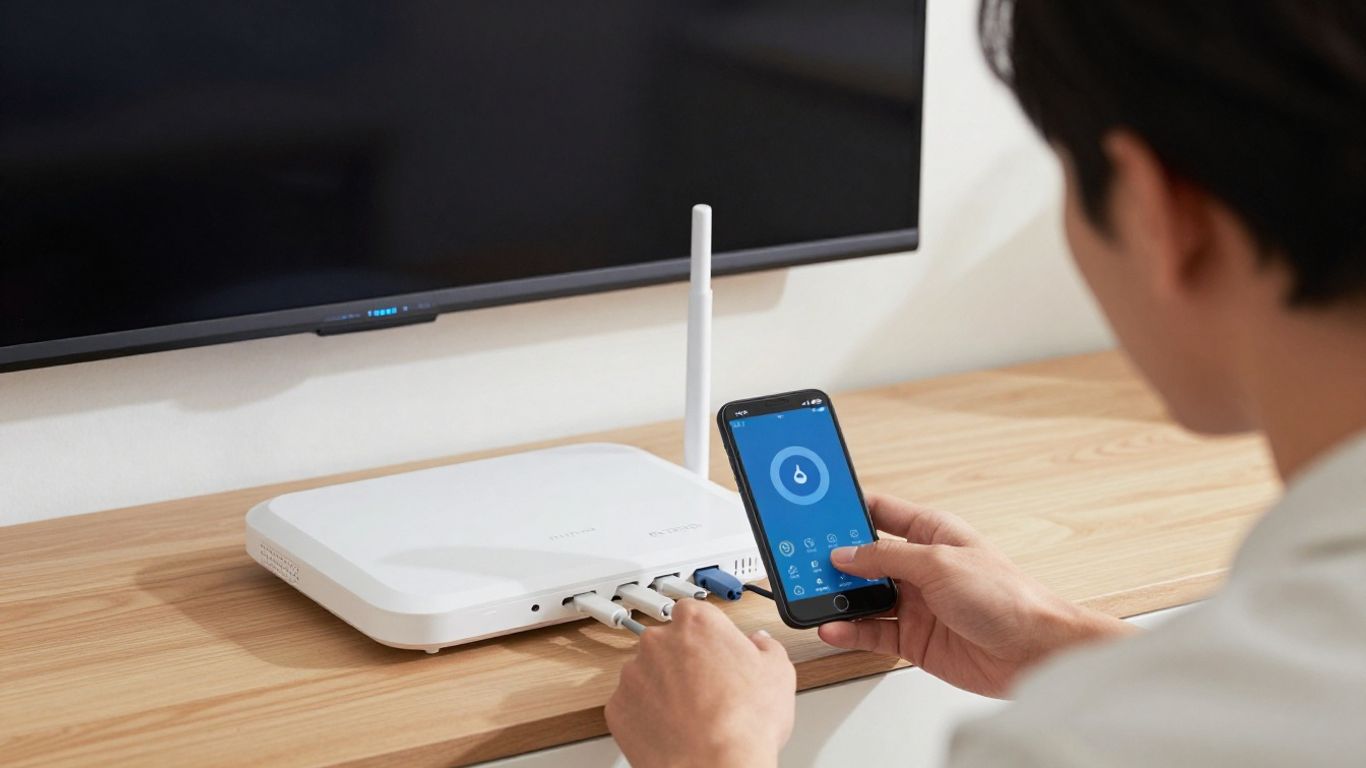
Android and Google TV devices offer the most native support for these applications due to their open filesystem. Installing the player through the official app store allows for deep system integration, such as booting the application upon startup. Users gain significant advantages by offloading processing to hardware specifically built for media playback, ensuring smooth frame rates.
Using IPTV Pro on iOS and Apple TV
IOS platforms require specific configuration steps to maintain consistent network connections. Users can leverage the app to organize massive channel lists, but they must ensure their local network configuration allows for multicast traffic when applicable. Stability on these devices often depends on the strength of the wireless signal and the efficiency of the underlying network protocols.
Installing IPTV Pro on Windows and PC platforms
Desktop users often use Smarters IPTV Pro as a primary method for interacting with their playlists on larger monitors. Installation follows standard procedures, requiring enough memory to handle high-definition stream buffers. A stable wired connection for PC platforms is highly recommended for users managing high-bandwidth 4K content streams.
Managing app performance on low-end hardware
Performance issues on cheaper devices are often linked to limited processing power and memory caches. Users can often enhance stability by ensuring the system remains updated and by clearing unnecessary app data. The following table outlines how different hardware specifications influence streaming performance.
| Hardware Component | Recommended Spec | Impact on Resolution |
|---|---|---|
| Processor (CPU) | Quad-Core 1.5GHz | High performance stability |
| System Memory | 2GB RAM | Prevents stuttering buffering |
| Storage Memory | 8GB Available | Ensures caching room |
Maintaining these hardware standards ensures your playback remains consistent over long periods, preventing thermal throttling or software crashes.
Step-by-step configuration and playlist setup
Obtaining and verifying M3U playlist file formats
Start by ensuring your M3U files are correctly formatted, as improperly structured text will fail to load. These files act as a directory for your stream links, and verifying them with a text editor can reveal syntax errors. Once validated, you can import them directly to populate your channel list.
Adding EPG (Electronic Program Guide) sources for channel data
An Electronic Program Guide provides the essential metadata needed to browse channel schedules rather than just static stream links. You must link a valid XMLTV or JTV source to your playlist to reveal show times and descriptions. This upgrade transforms a list of boring links into a robust television guide.
Managing multiple playlists within the application
Users can maintain multiple sources by utilizing the application’s menu to switch between them as needed. This approach is beneficial when you subscribe to different networks for distinct language or sports content. Simply organize each playlist under a specific label to switch seamlessly without manual re-imports.
Importing channel logos and stream metadata
Visual labels help identifying channels at a glance when browsing large lists. You can map custom URLs to your channels to improve the interface’s aesthetic value. Following these steps helps keep your library clean:
- Locate the channel edit menu.
- Paste the URL of the icon image.
- Save the changes to the metadata field.
- Restart the application to refresh the cache.
Properly mapping these assets ensures your interface looks professional and remains easy to navigate throughout the day.
Optimizing the user experience and playback
Adjusting stream buffer settings for different networks
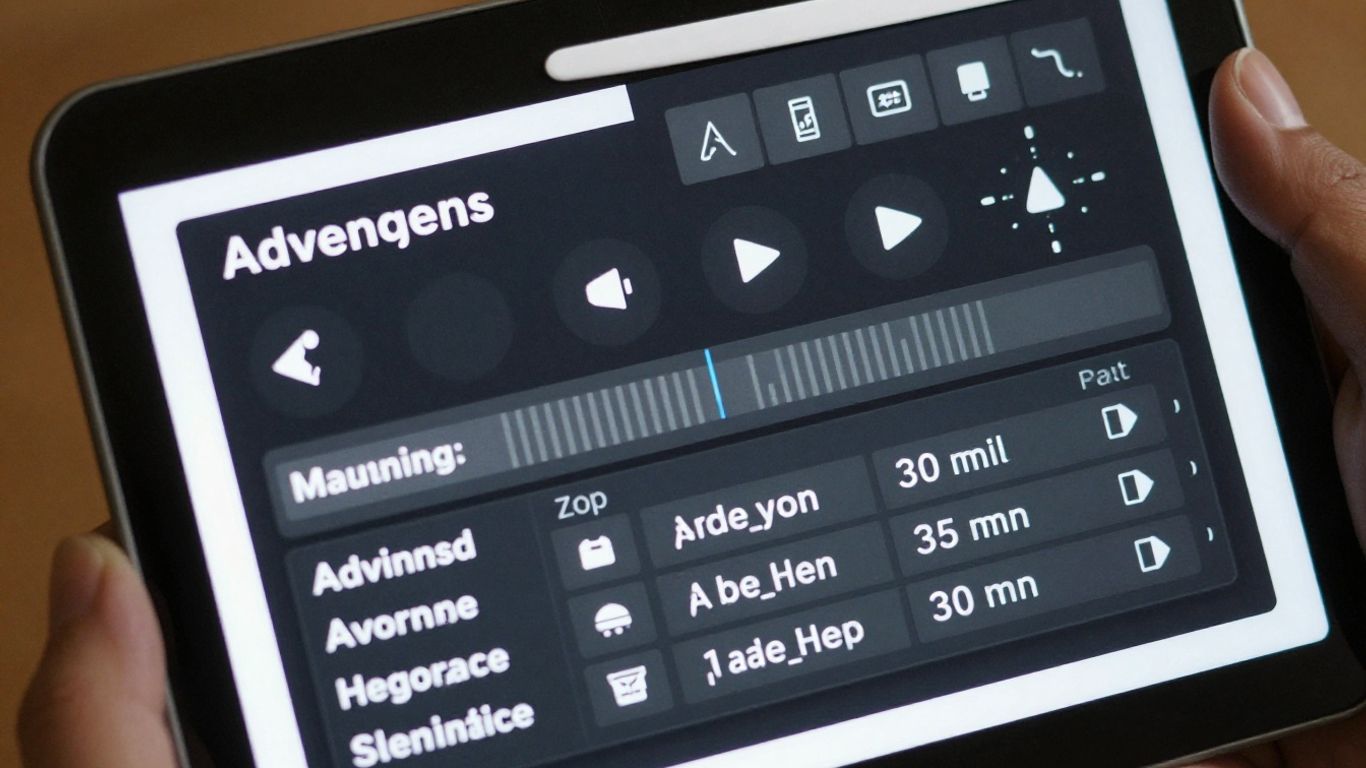
Buffer settings serve as a fail-safe against minor network fluctuations during high-traffic periods. By increasing the internal buffer, you allow the device to download more data in advance, preventing sudden stalls. Finding the right balance ensures a seamless streaming experience without significant lag after clicking play.
Creating user favorites and custom categories
Manually tagging your most-watched channels helps simplify navigation across extensive libraries. You can create custom folders to sort content by genre, language, or topic, keeping your most relevant content front and center. This organization strategy reduces time wasted searching for specific broadcasts.
Implementing parental controls and channel locking
Ensuring family safety requires active channel management within the app settings. You can implement PIN-based locking to restrict access to specific categories or sensitive content. This feature is vital for shared household devices where children have access to the living room television.
Configuring remote control hotkeys and interface navigation
Advanced users benefit from mapping remote buttons to specific actions like volume control, channel switching, or opening the EPG. Customizing your social media strategy for interaction is less important than making these daily hardware interactions feel natural. Investing time in your remote configuration IPTVON.ME will make browsing through your extensive libraries much faster and more enjoyable.
Consistent playback performance relies heavily on how your device handles local data caching during peak viewing hours. Setting your buffer size to accommodate your specific internet velocity typically solves most minor stuttering issues encountered with high-definition streams.
Adjusting these settings manually allows you to tailor the application to your network’s unique constraints, ensuring that performance stays high regardless of the time of day.
Troubleshooting common playback issues
Diagnosing stream connection errors and timeouts
Connection timeouts signify that the player cannot reach the source server within the allocated time. This may be due to temporary server downtime or a blockage on your local network. Always perform a network reset to ensure your router is not dropping packets before blaming the source.
Handling codec incompatibility for specific video channels
Rarely, a channel may use an obscure video codec that your device native player cannot decode. Trying an external player app often bridges this gap, as third-party players include a broader library of video decoding protocols. This simple swap can instantly resolve black screen errors for specific high-definition content.
Clearing app caches and resetting data settings
Over time, corrupted cache files can lead to UI bugs and playback freezing. Removing the temporary data from the settings menu forces the application to refresh its connection to your playlist. This is a standard "clean slate" approach that manages to fix a wide variety of persistent application glitches.
Updating playlists to resolve dead links
Channel URLs can become outdated or retired by the provider without notice, leading to dead links in your library. Regularly checking for updates or re-importing the latest version of your playlist file is the only way to ensure your content is always fresh. Using a reliable service ensures these updates happen automatically through modern cloud syncing features.
Legal considerations and safety best practices
Understanding legitimate sources for content delivery
Streaming requires ethical usage of provided media to ensure artists and creators are supported. Always choose IPTVON.ME or other providers that prioritize legitimate licensing and transparent content delivery protocols. This protects your interests and ensures that your streaming infrastructure is built on solid, legal foundations.
Protecting personal data with a VPN when streaming
Using a secure VPN is a professional recommendation for any user moving sensitive data over an internet connection. It adds a layer of encryption between your device and the stream, preventing unauthorized tracking. While not strictly required for playback, it remains a best practice for digital hygiene.
Avoiding copyright infringement through verified provider selection
Verified providers offer high-quality streams without the risks associated with unauthorized sources. By selecting services that demonstrate accountability and clear customer service, you avoid potential copyright pitfalls. Always verify that your source is compliant with regional distribution policies before finalizing a long-term streaming commitment.
Conclusion
Mastering your streaming environment requires a blend of proper hardware selection and ongoing software maintenance. By staying organized with your playlists and keeping your device settings tuned, you can enjoy a frictionless, high-quality television replacement that provides exactly the content you need right when you need it.
Frequently Asked Questions
Why does my stream keep buffering during playback?
Buffering is typically caused by insufficient download speeds or a lack of internal cache buffers. Try reducing the stream quality or increasing the buffer length in your settings for better results.
Can I watch my content on multiple devices at once?
Support for multiple concurrent streams depends entirely on the terms set by your specific provider. Always check your service agreement to confirm if multi-device usage is included in your current plan.
What should I do if a channel link stops working?
Channel links may expire if the source server changes its configuration or shuts down. Try updating your playlist file or contacting your service provider to see if a newer version of the link is available.
Do I need to be a technical expert to use this app?
No technical expertise is required, as most configurations simply involve pasting a URL into a designated field. Many users find the process intuitive after an initial setup session.
Is it safe to use custom icons with my channel list?
Yes, using custom icons is safe and serves only to enhance your visual user interface. These files are static images and do not execute any code on your system hardware.
Why is the EPG data for some channels missing?
Missing EPG data usually occurs because the channel is not correctly mapped to the XMLTV or JTV source file. Ensure your provider offers consistent metadata mapping for the specific channels you are viewing.
Can hardware performance affect the video resolution?
Hardware with limited processing power might struggle to decode high-bitrate 4K content, leading to dropped frames. Mid-range hardware is usually sufficient, but high-end devices are recommended for the smoothest experience.