Key Takeaways
IPTV web services bring live and on-demand television into a browser, but the experience depends on the provider, connection, and device. A careful setup also includes checking licensing, privacy, and account security.
- IPTV web delivers television through an internet connection rather than a traditional broadcast or cable feed.
- Compare channel selection, video quality, compatibility, reliability, support, and subscription terms before paying.
- A current browser, stable connection, and correctly configured player prevent many common playback problems.
- Verify that a service has the right to distribute its content and treat unusually cheap offers with caution.
- Small changes to Wi-Fi, playback settings, subtitles, and user profiles can make viewing more comfortable.
What IPTV web means and how it works
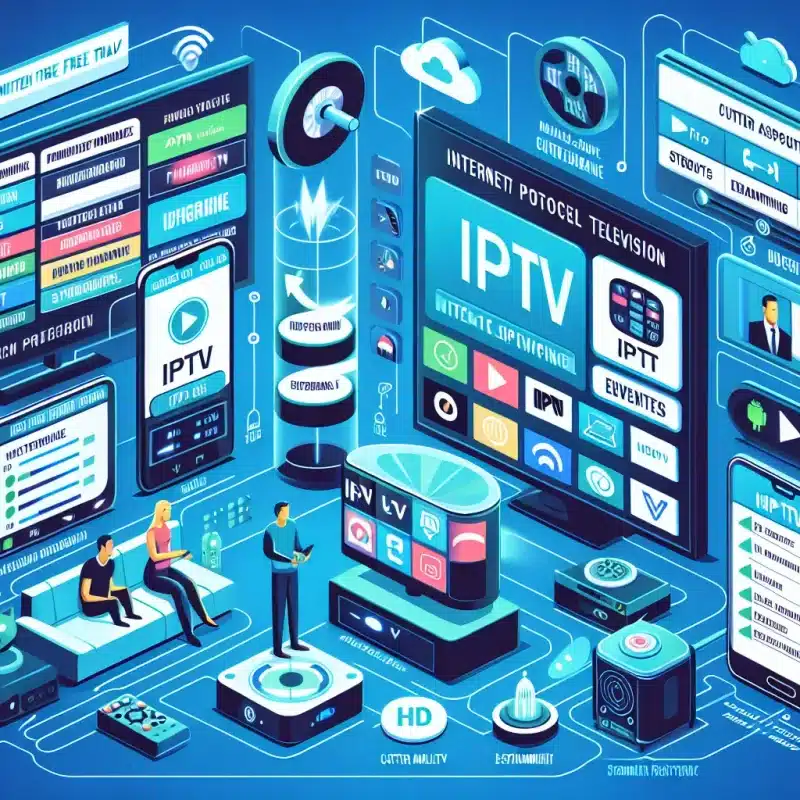
IPTV web refers to television delivered through Internet Protocol networks and accessed in a browser. Instead of relying on a dedicated cable box or broadcast receiver, the viewer signs in to an online service and watches available live or on-demand programming. The quality can be excellent, but it is never separate from the quality of the internet connection and the service itself.
The difference between IPTV and traditional television
Traditional television commonly arrives through terrestrial broadcast, satellite, or cable infrastructure, while IPTV sends video as data over an internet connection. That difference makes browser viewing possible on a computer or compatible mobile device without installing a separate television receiver. It also means that congestion, browser behavior, and authentication can affect the experience in ways familiar to anyone who streams video online.
The format is flexible rather than automatically better. A viewer may appreciate the ability to watch from different locations, while another may prefer the predictability of a conventional set-top box. The practical question is whether the service offers the programming, legal access, and stability that fit the household.
How browser-based IPTV delivers live and on-demand content
A browser-based player requests a stream from the provider, receives small segments of video, and decodes them for playback. Live channels are delivered as the event happens, whereas on-demand programs can usually be started, paused, or resumed according to the service’s features. The player may also present channel categories, a program guide, search, or a favorites area.
Because the stream is adaptive, some services can change video quality as available bandwidth rises or falls. That helps avoid an abrupt stop, although it may briefly soften the picture. A useful IPTV setup guide can help connect these moving parts, from provider selection through player settings.
IPTV web players, apps, and compatible devices
The simplest arrangement is a supported browser on a laptop or desktop computer. Some services also offer browser players designed for larger screens, while dedicated apps may be available for smart TVs, phones, tablets, or streaming boxes. Compatibility should be checked before subscribing rather than assumed from the words “works on all devices.”
A web player may require JavaScript to be enabled, and login pages can depend on cookies or pop-ups. For example, a WebTv Player page specifically notes that JavaScript must be enabled before the player can be used. That small requirement explains why a service can appear unavailable in one browser while working normally in another.
Internet speed, bandwidth, and streaming quality
Speed is only one part of streaming performance. The connection also needs enough consistency for the chosen resolution, and several people watching, gaming, or uploading files at once can reduce the bandwidth available to the player. Wi-Fi distance, router placement, and network interference matter too.
High-definition and 4K streams generally need more sustained capacity than standard-definition video. If playback repeatedly pauses, testing another device and closing competing downloads can reveal whether the problem is local or provider-side. Stable bandwidth matters more than headline speed when a stream must continue for a long program.
How to evaluate an IPTV web service
Choosing an IPTV web service is less about counting the biggest number on a sales page and more about matching the offer to actual viewing habits. Check whether the channels you watch are included, whether the player works on your devices, and whether help is available when something fails. A short trial can be useful, but only when its conditions are clear.

Channel selection, video quality, and content availability
Start with the programs that matter most: local news, particular sports, entertainment channels, children’s content, or international programming. A long channel list is not useful if the relevant channels are missing, unreliable, or restricted in your location. Also look for clear information about live television, video on demand, resolution, subtitles, and catch-up features.
Country availability can be a meaningful filter for international households. A broad country channel directory illustrates why location and language should be checked before purchase, though a directory alone does not establish licensing or stream quality. Compare the advertised catalog with the provider’s actual trial experience.
Supported browsers and device compatibility
Check the current versions of the browsers you use and confirm whether the service supports desktop, mobile, smart TV, or streaming-box access. A service that runs well on a computer may not offer the same controls on a television browser. Look for requirements involving JavaScript, cookies, pop-ups, screen size, or browser extensions.
It is also wise to test the player on the device where you expect to watch most often. If a household alternates between a laptop and a television, both should be tested during any trial instead of relying on a general compatibility statement.
Reliability, uptime, and customer support
Reliability is visible in the ordinary moments: signing in before a program, changing channels during a live event, and returning after a short pause. Look for transparent support channels, realistic service descriptions, and a clear process for reporting playback or account problems. Customer support should not be an afterthought hidden behind a vague contact form.
IPTVON provides a premium service with live channels and video-on-demand content, along with an emphasis on high-quality streaming and customer support. Its published positioning includes anti-freeze technology, a 99% uptime guarantee, and 24/7 support. Those are provider claims to assess against the terms and your own trial experience, not a promise that every network will behave identically.
Pricing, trial periods, and subscription terms
Price comparisons should include the full term, renewal conditions, simultaneous-viewing rules, payment method, and refund policy. A low monthly figure may be less attractive if it requires a long commitment or excludes the devices you need. Read the cancellation language before entering payment details.
The same careful comparison habit applies in other purchase decisions, such as this quartz and granite guide, where budget, use, maintenance, and long-term value are weighed together. The subject is different, but the method is useful: identify your priorities first, then compare offers against them rather than against a single headline price.
How to set up IPTV web on your device
Most IPTV web setups are straightforward when the account, browser, and connection are ready first. Begin with the provider’s official login details and instructions, then test the player before arranging a full evening around it. A few minutes of preparation can prevent confusion later.
Preparing your internet connection and browser
Use a current browser and restart it if an embedded player fails to load. Check that JavaScript, cookies, and any required permissions are enabled, then temporarily disable extensions that interfere with video or pop-ups. If possible, test the service on a wired connection or near the router before diagnosing the provider.
Pause large downloads and ask other users to avoid bandwidth-heavy activity during the initial test. Record whether the issue occurs on one browser, one device, or the entire home network. That simple comparison gives support staff useful information if a ticket becomes necessary.
Signing in and configuring a web player
Open the provider’s login page directly, enter the supplied credentials, and avoid copying spaces before or after the username or password. Once inside, select a channel or program and allow the player a moment to load. Depending on the service, settings may include picture quality, audio track, subtitles, full-screen mode, or playback behavior.
IPTVON offers access to a large library of live channels and video-on-demand content, with a focus on high-quality streaming. If you use that service, follow its own account and player instructions rather than importing credentials into an unrelated application. Keeping the setup simple also makes later troubleshooting easier.
Using playlists, electronic program guides, and favorites
Playlists organize streams into a form the player can read, while an electronic program guide adds schedule information where supported. Favorites reduce scrolling and make frequently watched channels easier to find. Give categories a little time to settle before reorganizing them; some services load guide data after the channel list appears.
A practical setup usually starts with the channels used most often, followed by regional, language, sports, or entertainment groups. The streaming setup archives offer additional background on playlist formats and configuration choices for readers who want to understand those details more fully.
Troubleshooting buffering, login, and playback issues
Buffering can come from an overloaded home network, weak Wi-Fi, a browser problem, or a busy stream source. Login failures may instead be caused by an expired subscription, incorrect credentials, or a service-side authentication issue. Change one variable at a time so the cause does not get lost among several simultaneous fixes.
A useful sequence is compact enough to remember:
- Refresh the page and sign in again.
- Test another supported browser or device.
- Move closer to the router or use Ethernet.
- Lower the playback quality temporarily.
- Contact support with the time, channel, device, and error message.
After each step, watch long enough to see whether the change helped. If the same stream fails across several devices while other websites work normally, include that detail in your support request.
How to use IPTV web safely and legally
Convenience should not replace basic due diligence. IPTV is a delivery method, not a blanket guarantee that every service has permission to distribute every channel or program. Choose providers that explain their offer clearly, protect customer information, and provide terms you can actually read.
Checking licensing and content distribution rights
Before subscribing, look for information about the service’s authorization to distribute its channels and on-demand programs in your location. Rights can vary by country, program, and platform, so a large catalog is not proof of lawful distribution. When the provider avoids basic questions about licensing, treat that silence as a warning.
Local rules also differ. If you are uncertain about a particular service or channel, consult an appropriate official source in your jurisdiction rather than assuming that availability makes access lawful.
Recognizing suspicious services and misleading offers
Be cautious when a service promises every premium channel for an implausibly low price, pressures you to pay immediately, or uses constantly changing contact details. Broken pages, copied branding, and claims that sound too absolute are additional reasons to pause. A legitimate-looking interface alone cannot confirm the source of the streams.
Do not install unknown files simply because a page says they are required. Browser-based viewing should not demand unnecessary system permissions, remote access, or unrelated software. When an offer creates urgency instead of explaining its terms, walking away is usually the safer choice.
Protecting account credentials and payment information
Use a unique password for the streaming account and avoid sharing it through public messages. Check the address bar before signing in, especially when arriving through an advertisement or an unfamiliar link. Payment details should be entered only on a secure page connected to the provider you intended to use.
If several people need access, use the service’s supported profile or device controls rather than passing around the primary password. Remove saved credentials from shared computers and sign out when using a temporary device.
Understanding privacy policies and data collection
A privacy policy should explain what information is collected, why it is collected, how long it is retained, and whether it is shared with service providers. Pay attention to account data, payment records, device identifiers, viewing history, cookies, and analytics. The policy may also describe requests for deletion or access.
The same questions apply when using related digital tools. For example, guides on choosing marketing AI tools and planning AI agent projects discuss privacy and implementation concerns in their own contexts; those links are broader technology reading, not evidence about an IPTV provider. Staying aware of data flows is useful even when the application changes.
How to improve the IPTV web viewing experience
Once the basics work, comfort becomes the focus. A good viewing setup reduces distractions, keeps controls accessible, and reserves enough network capacity for the stream. Improvements do not have to be expensive; many come from using existing browser and router settings more deliberately.
Choosing the right browser and playback settings
Use a browser that the service officially supports and keep it updated. Full-screen mode, hardware acceleration, picture quality, and audio selection can all affect playback, although the best setting varies by device. If video stutters after an update, test hardware acceleration both on and off before changing several other settings.
A larger screen may benefit from full-screen playback, while a limited connection may benefit from a lower resolution. Save the setting that works consistently rather than chasing the highest available number at all times.
Reducing buffering on Wi-Fi and shared networks
Place the router in an open, central location and avoid hiding it behind furniture or other electronics. A wired connection is often the simplest test for a television or desktop computer. On Wi-Fi, a less crowded band or a closer access point may help, especially in apartments with many neighboring networks.
Households with several viewers can schedule large downloads outside viewing hours or use router quality-of-service controls where available. If buffering affects only one room, the local wireless path is more suspect than the entire provider.
Using subtitles, audio options, and accessibility features
Subtitles can improve comprehension, support language learning, and help when background noise makes dialogue difficult. Audio-track choices may provide alternate languages or descriptive audio when the service and program support them. Browser zoom, operating-system captions, and keyboard controls can also make a web player more comfortable.
Availability varies by channel and program, so check the player rather than assuming every feature is present. A short test before a long film is enough to confirm that captions are synchronized and readable on the chosen screen.
Managing multiple users and viewing preferences
Shared households benefit from a simple agreement about profiles, favorites, viewing limits, and simultaneous streams. Keep personal shortcuts separate where the service supports profiles, and avoid changing global playback settings without telling other users. This reduces the small frustrations that make a shared account feel unreliable.
If the subscription limits devices or concurrent viewing, make that rule part of the household setup. Clear expectations are easier than discovering the restriction during a live event.
IPTV web alternatives and use cases
Browser-based television is one option among several, and the right choice depends on where and how you watch. A web player is convenient for temporary access, while a dedicated app may offer deeper controls on a television or phone. Comparing the viewing context is more useful than declaring one format universally best.
When a dedicated streaming app is a better choice
A dedicated app may be preferable when you watch primarily on a smart TV, want a remote-friendly interface, or need features that a browser does not expose. Apps can also remember settings more consistently and integrate with the device’s operating system. On the other hand, installing an app takes more time and may reduce flexibility on shared or work devices.
For viewers researching television advertising alongside streaming, a clear TVC production guide explains a different side of video: planned commercial production rather than household playback. It is adjacent reading, not an IPTV service recommendation.
Comparing web players with smart TV and mobile apps
Web players are easy to access and usually avoid installation, but browser controls can feel less natural from a couch. Smart TV apps may provide better navigation with a remote, while mobile apps suit short viewing sessions and travel. Screen size, battery life, casting support, and account controls should all enter the comparison.
A multiplatform player may bridge some of these differences. For example, IPTVX is described as supporting Apple, Android, Google TV, and Fire TV, with features including live television, movies, series, recordings, and personal libraries. That is a product-specific description, so confirm current availability and terms before relying on it.
Using IPTV web for travel, work, or temporary viewing
A browser can be practical when you are away from your usual television, provided the service permits access from that location and the connection is trustworthy. Use a private device when possible, avoid saving passwords on borrowed computers, and sign out afterward. Hotel or public Wi-Fi may also be congested or subject to filtering.
For work breaks or temporary accommodation, browser access avoids installing software that you may not need later. Still, check geographic restrictions and account rules before traveling, particularly when crossing borders.
Choosing a service for sports, news, entertainment, or international content
Different categories create different priorities. Sports viewers tend to care about live reliability and delay, news viewers may value channel availability and quick access, and film or series viewers may focus on on-demand organization and subtitles. International households should verify language, regional rights, and the countries actually covered.
Make a short priority list before comparing plans:
- The channels or program categories that matter most.
- The devices and browsers used every week.
- The acceptable picture quality and connection requirements.
- The support, refund, and cancellation terms.
That list keeps the decision grounded in real use rather than an impressive but irrelevant catalog. It also makes a trial easier to judge because you know exactly what to test.
Conclusion
IPTV web can be a convenient way to watch live and on-demand television, especially when browser access matters. The best experience comes from combining a suitable catalog with compatible devices, steady bandwidth, transparent terms, lawful distribution, and sensible account security. Test the service in the conditions where you will actually watch, then adjust the setup until it feels dependable rather than merely available.
Frequently Asked Questions
What is IPTV web?
IPTV web is television delivered over an internet connection and viewed through a web browser. Depending on the service, it may include live channels, on-demand programs, program guides, and favorites.
Do I need a special device to use IPTV web?
Usually, you need a compatible browser on a computer or mobile device. Some services may also support television browsers, smart TVs, streaming boxes, or dedicated apps, but compatibility should be confirmed with the provider.
How fast should my internet connection be?
The required speed depends on resolution, network congestion, and how many people are using the connection. A stable connection with enough available bandwidth is generally more useful than a high advertised speed that fluctuates.
Why does IPTV web keep buffering?
Buffering may result from weak Wi-Fi, competing network activity, browser problems, device limits, or an overloaded stream source. Testing another device, reducing quality, and using Ethernet can help identify the cause.
Is every IPTV service legal?
No. IPTV describes a delivery technology, not the provider’s licensing status. Check whether the service has rights to distribute its channels and programs in your location before subscribing.
Can I watch IPTV web while traveling?
Possibly, but access may be affected by geographic restrictions, account rules, local network conditions, or licensing limits. Use a trusted device, protect your credentials, and review the provider’s travel policy.
Are browser players better than dedicated apps?
Neither is always better. Browsers are convenient and require little installation, while dedicated apps may offer smoother remote navigation, saved settings, and device-specific features. Choose according to your main screen and viewing habits.